> For the complete documentation index, see [llms.txt](https://docs.bossithq.com/llms.txt). Markdown versions of documentation pages are available by appending `.md` to page URLs; this page is available as [Markdown](https://docs.bossithq.com/users-and-access/labour-management/attendance.md).
# Attendance
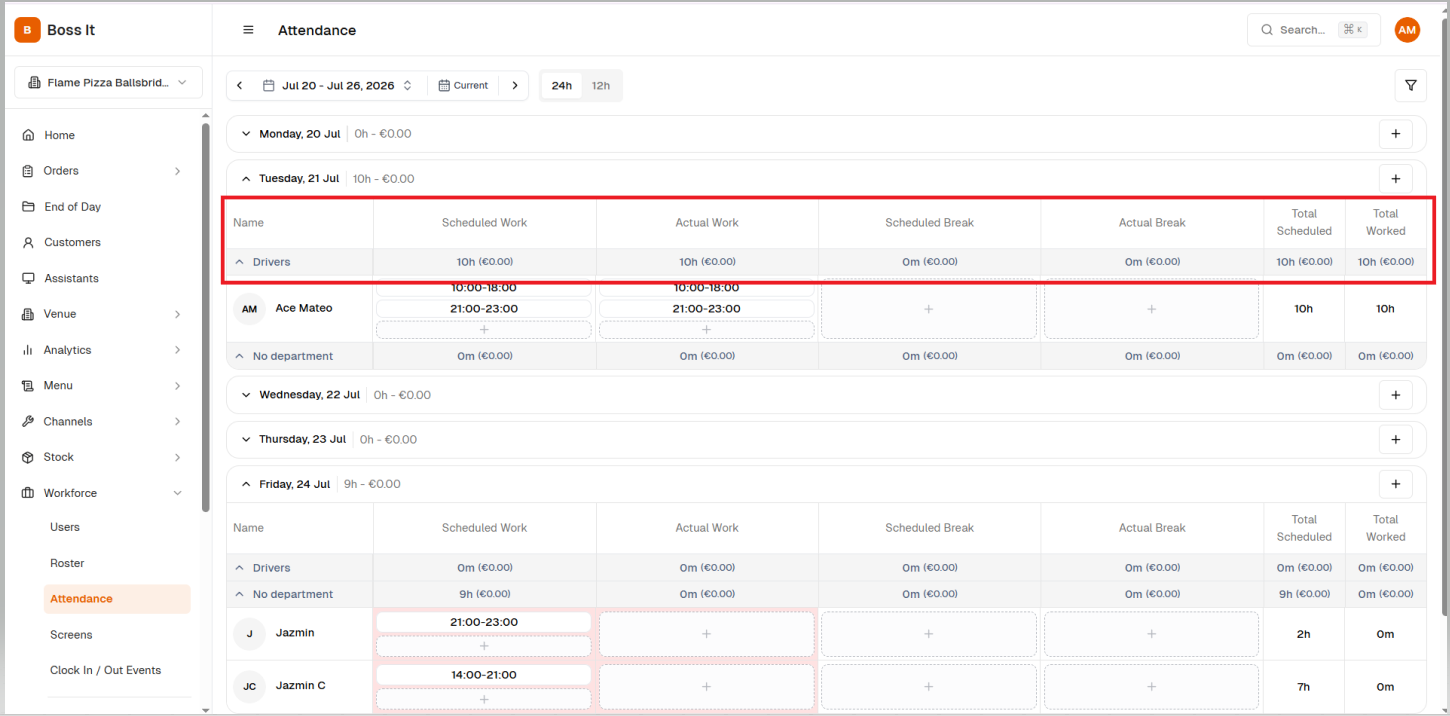
The **Attendance** page allows managers to review and manage employee working hours by comparing scheduled shifts with actual worked time. It provides a clear overview of attendance, breaks, and any discrepancies that require attention.
If there are missing clock-ins, clock-outs, or incomplete attendance records, the affected day is highlighted in **red**, making it easy to identify shifts that require review.
## Accessing the Attendance Page
{% hint style="warning" %}
Only users with this permission can access this page: **"User can access attendance"**.
{% endhint %}
In the [**Admin Portal**](https://admin.gobossit.com/) **Venue level** navigate to **Workforce > Attendance**.
### Changing the Attendance View
Attendance is displayed by week, with employees grouped under their assigned department.
#### Navigate Between Weeks
Use the **Previous** and **Next** arrows at the top of the page to move between attendance periods.
You can:
* View the **current week**.
* Navigate to **previous weeks** to review historical attendance.
* Move to **future weeks** to view scheduled attendance.
The Attendance page automatically updates to display the selected week.
#### Change the Time Format
Attendance times can be displayed in either:
* **24-hour format** (e.g. **14:00–22:00**)
* **12-hour format** (e.g. **2:00 PM–10:00 PM**)
Switching between time formats changes only how the times are displayed and does not affect the recorded attendance data.
#### Filters
Clicking the filter icon opens a filter panel with:
* **Search** — free-text search, likely by staff name.
* **Department** — dropdown to filter the table down to one or more departments (e.g. Drivers, Inner Staff).
* **Occupation** — dropdown to filter by role/job title within a department.
* **Clear filters** — resets all filter selections back to default (no filters applied).
## Content
### Day sections
* Each day of the selected week has its own collapsible section.
* The day header shows a **total** for that day: total hours and total cost.
* A **+ button** on the day header allows adding a new shift entry directly for that day.
### Department/group rows
* Staff are grouped under their department (e.g. **Drivers**, **Inner Staff**).
* Each group row is collapsible and shows **subtotals** for that group across all columns (Scheduled Work, Actual Work, Scheduled Break, Actual Break, Total Scheduled, Total Worked), including cost in brackets.
### Individual staff rows
Each employee record displays:
| Column | Description |
| ------------------- | --------------------------------------------------------------------- |
| **Scheduled Work** | The shift assigned to the employee in the roster. |
| **Actual Work** | The hours recorded from the employee's clock in and clock out events. |
| **Scheduled Break** | The break planned in the roster. |
| **Actual Break** | The break recorded during the employee's shift. |
| **Total Scheduled** | Total scheduled working hours for the day. |
| **Total Worked** | Total hours actually worked after attendance has been recorded. |
## Adding or Editing Attendance
Attendance can be adjusted directly from this page.
To add or edit attendance:
1. Locate the employee and date.
2. Click the **+** button in the relevant section.
3. Enter the required work or break times.
4. Save your changes.
Managers can update attendance to correct:
* Missed clock-ins
* Missed clock-outs
* Incorrect working hours
* Break adjustments
* Manual attendance entries
### Attendance Discrepancies
When the system detects missing or incomplete attendance information, the affected day is highlighted in **red**.
Common reasons include:
* The employee was scheduled but did not clock in.
* The employee forgot to clock out.
* Attendance has not yet been entered.
* Scheduled hours do not match the recorded working hours.
* Incomplete or missing break records.
A highlighted day acts as a visual warning that attendance requires review before payroll is processed.
#### Example
In the example above, **Friday** and **Saturday** is highlighted in **red**.
This indicates that one or more attendance records for that day contain a discrepancy, such as:
* Missing clock-in or clock-out records.
* Scheduled shifts with no recorded work.
* Incomplete attendance information requiring manager review.
Managers should open the highlighted day, review each employee's attendance, and update any missing information before finalising payroll.
### Attendance Limits
The Attendance page highlights when employees exceed or fall below their configured daily or weekly working hour limits. This makes it easier to identify attendance records that require review before payroll or schedule approval.
---
# Agent Instructions
This documentation is published with GitBook. GitBook is the documentation platform designed so that both humans and AI agents can read, navigate, and reason over technical content effectively. Learn more at gitbook.com.
## Querying This Documentation
If you need additional information that is not directly available in this page, you can query the documentation by asking a question.
Perform an HTTP GET request on the following URL with the `ask` and `goal` query parameters:
```
GET https://docs.bossithq.com/users-and-access/labour-management/attendance.md?ask=&goal=
```
`ask` is the immediate question: it should be specific, self-contained, and written in natural language.
`goal` is what the user is ultimately trying to achieve, the reason they need the answer. Sharing it helps GitBook give you a better, more relevant answer. A goal is most helpful when it describes the outcome the user wants rather than restating the question. For example, with `ask=how do I create an API token`, a goal like `automate deployments from our CI pipeline` lets GitBook tailor the answer to that use case.
The response will contain a direct answer to the question and relevant excerpts and sources from the documentation.
Use this mechanism when the answer is not explicitly present in the current page, you need clarification or additional context, or you want to retrieve related documentation sections.