> For the complete documentation index, see [llms.txt](https://docs.bossithq.com/llms.txt). Markdown versions of documentation pages are available by appending `.md` to page URLs; this page is available as [Markdown](https://docs.bossithq.com/users-and-access/labour-management/roster.md).
# Roster
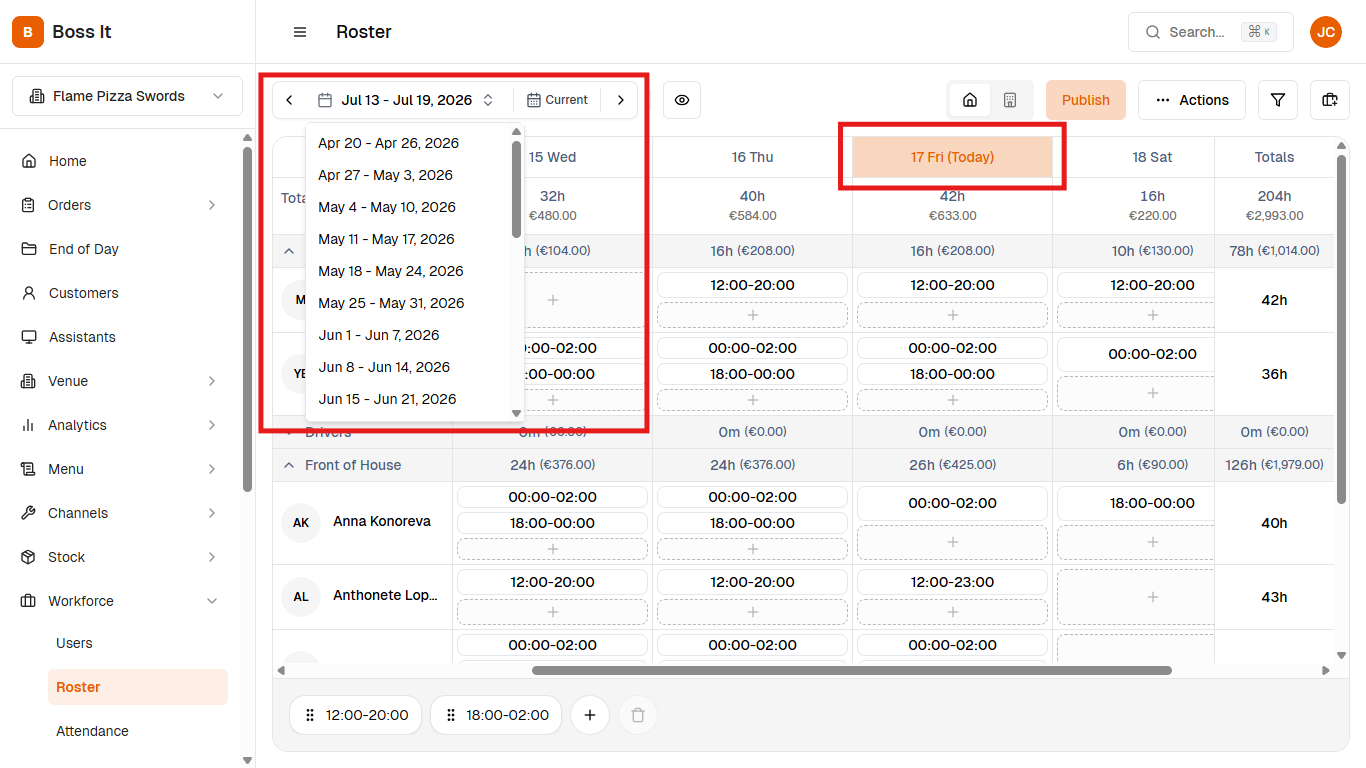
The **Roster** page allows users to create and manage staff schedules for any given week. It provides a clear overview of staff members and their assigned shifts. It allows managers to allocate shifts, check staff availability, and keep track of the total hours timetabled for each employee over any week.
This is where Users Shifts are defined for the End of Day Report. [Users Shifts](/end-of-day-report/end-of-day-report-contents/users-shifts.md)
## Accessing the Roster
In the [**Admin Portal**](https://admin.gobossit.com/)**,** navigate to **Workforce > Roster.**
### Week Navigation
* Use the **left and right arrows** next to the date range to move to the previous or next week.
* The **date range picker** (e.g. Jul 13 – Jul 19, 2026) lets you select a specific week from the dropdown list.
* The **Current** button snaps the view back to the present week at any time.
* Today's column is highlighted (e.g. 17 Fri (Today)) for quick reference
### Display Settings
Click the **eye icon** to open display options:
* **12h / 24h toggle** — switches all shift times between 12-hour (e.g. 6:00pm–2:00am) and 24-hour (e.g. 18:00–02:00) format.
* **Schedule toggle** — switches between scheduling per day or per user.
* **Sort toggle** — switches staff ordering between:
* **By name** — staff listed A–Z within each department.
* **By shift** — staff ordered by shift timing/sequence through the day, so shifts cascade in start-time order rather than by name.
* **Hide unapproved** — hides unapproved leaves.
### Filtering the Roster
Click the **filter icon** to narrow the roster view by:
* **Search** — find a specific staff member by name.
* **Department** — filter to a specific department (defined in [User Departments](/users-and-access/labour-management/user-departments.md)).
* **Occupation** — filter by occupation (defined in [User Occupations](/users-and-access/labour-management/user-occupations.md)).
Click on **Clear filters** to reset all active filters.
## Managing the Roster
### Creating a Shift
Click the **plus (+) sign** in any staff member's day cell to add a shift.
* Type a start and end time directly (e.g. 12-18).
* **Midnight crossover:** for shifts that go past midnight (e.g. 18:00–02:00), the system automatically splits the shift — the portion after midnight (00:00–02:00) is placed on the **next day's** column, while the first portion (18:00–00:00) stays on the original day.
#### Multiple Shifts
Multiple shiftrs can be entered at once by using commas. For example, entering "**10-14,15-19"** creates two shifts: 10:00-14:00 and 15:00-19:00.
#### Keyboard Navigation
Keyboard navigation can be used to reduce mouse usage and make creating large schedules much faster. After entering a shift, use **Tab** or **Enter** to move to the next cell. Choose between two navigation modes:
* **By User** – complete one employee's week before moving to the next.
* **By Day** – complete one day for all employees before moving to the next day.
### Editing a Shift
Edit shifts by clicking on an existing shift and updating as needed.
### Removing a Shift
To remove shifts, click on the **bin** icon on the relevant shift.
{% hint style="info" %}
This only displays users that have **Show in roster enabled**. This is configured in [User Details Tab](/users-and-access/labour-management/users-in-group/user-information/user-details-tab.md).
{% endhint %}
### Favourite Shifts
Saved shift presets appear as chips at the bottom of the page (e.g. 12:00-20:00, 18:00-02:00) for quick reuse.
* **Using a favourite shift:** drag and drop it onto a staff member's day cell to apply the time range automatically.
* **Creating a favourite shift:** click the plus (+) sign and type the time range save a new shift.
* **Deleting a favourite shift:** drag it onto the trash icon to remove it.
## Totals
* **Day totals:** the top of each day shows total scheduled hours and cost for that day across all staff.
* **Department totals:** shows subtotals for hours and cost within the department
* **Staff totals:** the right-most column shows total for each staff member's scheduled hours for the week.
* **Overall week total:** the top-right column shows the overall week total (hours and cost)
* **Shift breakdown and total:** hovering over a staff member's total or a shift shows a cost breakdown — standard hours/rate/cost, overtime hours/rate/cost (where applicable), and a combined total. Overtime thresholds and rates are configured in [User Positions Tab](/users-and-access/labour-management/users-in-group/user-information/user-positions-tab.md).
## Publish and Actions
The Publish button locks the roster for that week, preventing further edits. Use this once the week's schedule is finalised.
{% hint style="info" %}
Publishing only locks the week — it does **not** automatically notify staff. To notify staff, use **Email users** from the Actions menu separately.
{% endhint %}
The Actions menu allows you to:
* **Email users** — sends the roster/shift details to staff via email.
* **Copy to another week** — duplicates the entire current week's roster to a different week, useful for repeating schedules.
**Note:** If a user has scheduled leaves for the selected week, the shift will not copy to the days with leave.
* **Export —** exports the current week schedule to a file.
---
# Agent Instructions
This documentation is published with GitBook. GitBook is the documentation platform designed so that both humans and AI agents can read, navigate, and reason over technical content effectively. Learn more at gitbook.com.
## Querying This Documentation
If you need additional information that is not directly available in this page, you can query the documentation by asking a question.
Perform an HTTP GET request on the following URL with the `ask` and `goal` query parameters:
```
GET https://docs.bossithq.com/users-and-access/labour-management/roster.md?ask=&goal=
```
`ask` is the immediate question: it should be specific, self-contained, and written in natural language.
`goal` is what the user is ultimately trying to achieve, the reason they need the answer. Sharing it helps GitBook give you a better, more relevant answer. A goal is most helpful when it describes the outcome the user wants rather than restating the question. For example, with `ask=how do I create an API token`, a goal like `automate deployments from our CI pipeline` lets GitBook tailor the answer to that use case.
The response will contain a direct answer to the question and relevant excerpts and sources from the documentation.
Use this mechanism when the answer is not explicitly present in the current page, you need clarification or additional context, or you want to retrieve related documentation sections.